This Article will explain how to reset your forgotten password from both the Accountant and Client Profile sides of the system.
Accountants Process.
By following the steps below you will be able to reset your BrightID Password.
Go to the BrightManager Login page.
Enter your email address in the pop up Field and Click continue.
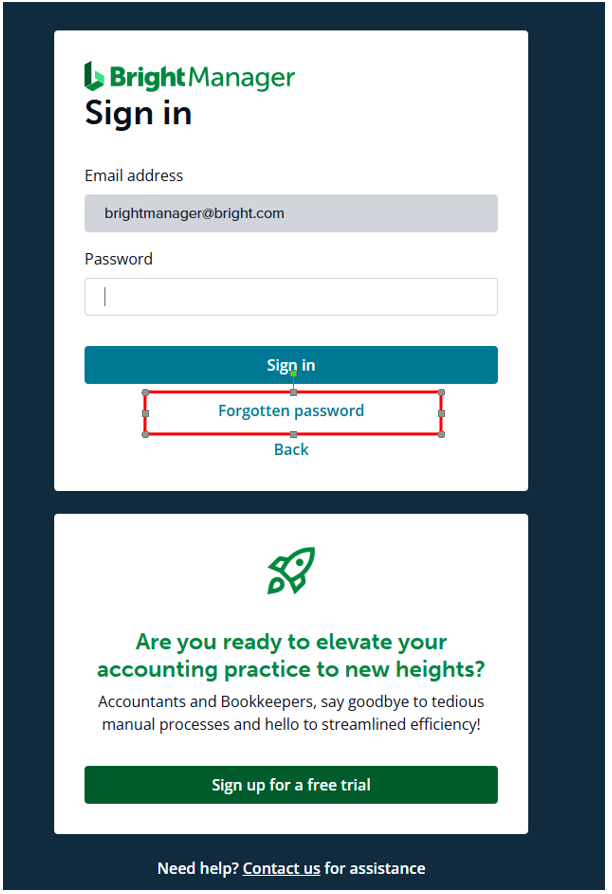
This will take you to the BrightID page > Under the Sign in button you will see 'Forgot Password'. Click this.
Enter you Email Address into the Reset Password pop up.
Press Send Verification.
The pop up will then ask you to enter the Verification code that has just been emailed to you.
This will then direct you to enter and confirm the new password.
Client of an Accountants Process
By following the below steps you will be able to Reset your password.
Go to the Login page.
Enter your email address and click continue.
Under the sign in button you will see 'Forgotten Password'. > Click this.
You will be asked to enter the login email address again.
Press Reset
You will then be sent an email containing a password reset link.
Click on the Reset Password button in the email.
Enter the new password and confirm the password > Click Reset.